Documentation
Configure AI Translations for your ServiceNow instance.
Use this guide to install the app, define translation scope, run scheduled or on-demand translations, configure message and chat translation, review reports, and manage system properties.
Installation
- Activate any of the out-of-box I18N: <language> Translations plugins that you require.
- Add any additional languages to the Language
preferred_languagefield on the Usersys_usertable. - If translating Knowledge Articles, activate the
com.glideapp.knowledge.i18n2plugin. - Install the AI Translations application.
- Switch to the AI Translations application scope.
-
Go to AI Translations → Properties.
- Choose the default service and enter the API key for that service.
-
Go to AI Translations → Scheduled Jobs → Populate all Languages.
- Click Execute Now.
-
Go to AI Translations → Definitions.
- Activate the definitions you require. Add additional definitions as needed.
-
Switch to the Global application.
- Go to AI Translations → Definitions.
- Set your filter to Type = Scheduled Translation.
- Go into each record individually.
-
If you see the info message Click here to update the table definition for: <table>, click the link and update the table's application access.
- Go to the Application Access tab.
- Set Accessible from to All application scopes.
- Set Can read, Can create, and Can update to true.
- Go to AI Translations → Scheduled Jobs → Process AI Translations and click Execute Now.
Scheduled translations
The Process AI Translations scheduled job runs weekly on Saturday at 1 AM by default. This can be changed if necessary.
Scheduled Job: Process AI Translations
Link: https://your_instance.service-now.com/sysauto_script.do?sys_id=6afeeaccdb8e6700458ccae3b996197a
The scheduled job processes all active Translation Definitions where Type is set to Scheduled Translation.
- Query the configured table based on the definition condition.
- Insert a new row into the Translation table for each Field to Translate and Target Language pair.
-
Each row attempts to locate an existing translation using the configured Primary Keys.
- If an existing match is found in the system, State is set to Translated and Translation Action is set to Existing Translation.
- If an existing match is not found, State defaults to Pending Translation. These records are processed after all definitions finish processing.
-
After all definitions are processed, the application translates rows in a state of Pending Translation.
- First, it searches the Translation and Translation Segment tables to see if an existing translation is already available. If one is found, that translation is reused instead of reaching out to the translation service.
- If an existing translation is not found, the app reaches out to the translation service and obtains a translation. If the Type is HTML, the Original Text (HTML) field is broken into Translation Segments. Only segments with a Type of Text are sent to the translation service. HTML and special characters are not sent, which keeps the character count down.
-
After translations are acquired, approval notifications are sent to any Approval Users and/or Approval Groups related to the Translation Definition Target.
- Approvers can modify the translation before approving.
- Once approval is obtained, or no approval is required, the translated text is written to the appropriate table based on the Translation Target. State is then set to Translated, and the record can be used to assist future translations.
Here is an example of one of the definitions that comes standard.


On-demand translations
On-demand translations can be obtained by a user on any table specified in the Translation Definition table.
A user can obtain a translation by using the Translate UI Action, which by default is accessed as a Form Context Menu by right-clicking the header.
This context option appears only if a definition is defined as On Demand for the table the user is currently on.
When a user clicks the Translate action, a form opens with a set of translation options.

- Source Language: Language you are translating from.
- Target Language: Language you are translating to.
-
What data do you want to translate?
- Existing Data: Data saved at the database level for this record.
- New data not yet saved: Data that has been typed on this form but not saved.
-
Where to display the translation?
- Display below field: The translation is displayed in an info message below the field being translated.
- Update field value: The translation overwrites any value in the field being translated.
- Fields to translate: This is a list of fields as defined in the Translation Definition Fields for that table. The checkbox next to each field defaults to true or false based on the On Demand Default field.
This is what the output would look like for this translation.

Here is an example of one of the definitions that comes standard.


Chat translations
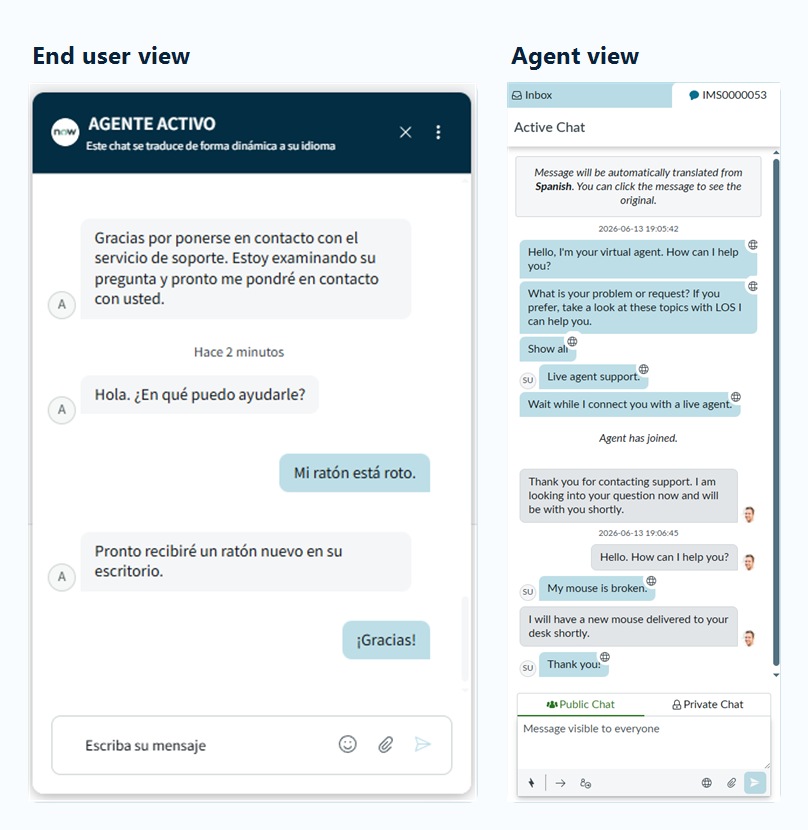
Users can chat in any language they prefer with chat translations. Every user in the chat can see messages in their own language.
This works for end users chatting with service desk agents through a Service Portal, one-on-one agent chats, and large chat rooms with users in many languages.
To utilize chat translations, go to the Translation Definition for the Live Feed Message live_message table and set Active to true. Also make sure the Target Languages are populated and active.
Message locator
Translation Definitions with Type set to Message Locator are used to fully populate the standard Message sys_ui_message table.
Message tags are located in UI Pages, UI Macros, Service Portal Widgets, and other places. In code, they look like gs.getMessage("message here") and ${message here}.


Here is an example of one of the definitions that comes standard.


Translation sets
Translation Sets are used when translated ServiceNow records need to be captured in specific update sets. This is helpful when translated content is part of a scoped application or configuration package that will be moved from one instance to another.
A Translation Set does not control what content gets translated. Translation Definitions still decide the source records, fields, languages, and translation behavior. The Translation Set simply tells AI Translations where to place the ServiceNow update records that are created after translated content is written back.
When to use Translation Sets
Use Translation Sets when translated records should be included in an update set for migration or deployment.
Common examples include:
- Translating content that belongs to a scoped ServiceNow application.
- Translating ServiceNow configuration records that need to move between instances.
- Capturing translated text records in the same update-set workflow as the application or configuration they support.
- Preparing translated content for promotion from development to test or production.
If translated content only needs to exist in the current instance, a Translation Set may not be needed.
How Translation Sets work
AI Translations checks for Translation Set records during scheduled translation processing, when translated content is being written back to ServiceNow.
For a Translation Set to be used:
- The Translation Set record must have a State of In Progress.
- The referenced ServiceNow Update Set must also be in progress.
- The translated record must belong to an application scope that matches the update set's application.
When those conditions are met, AI Translations moves the generated customer update for the translated record into the matching update set.
Configuring a Translation Set
- Create or open the ServiceNow update set that should receive translated updates.
- Make sure the update set is in progress.
- Create a record in Translation Set
x_271327_automated_translation_set. - Select the update set in the Update Set field.
- Set the Translation Set State to In Progress.
- Run or wait for the scheduled AI Translations process.
- After the translated updates have been captured, set the Translation Set state to Complete so future translations are no longer routed there.
Important notes
- Only Translation Sets marked In Progress are used. Records in New or Complete are ignored by the translation process.
- The referenced update set must also be in progress. If the update set is already complete, AI Translations will not route translated updates to it.
- Use one active Translation Set per application scope. If multiple active Translation Sets point to update sets for the same application, the routing may be ambiguous.
- Translation Sets do not translate content by themselves. They only help route the update records created after translation output is written back into ServiceNow.
Homepage reports
| Report Name | Description |
|---|---|
| Overall Translation Progress |
Type: Pie; Group by: State
Use: View the percentage of your instance that is translated.
|
| Overall Translation Progress by Table |
Type: Bar; Group by: Translation Definition.Table; Stack by: State
Use: View the overall progress for each table you are translating.
|
| Translation Progress - Excluding Existing Translations |
Type: Pie; Group by: State; Filter: Translation Action != Existing Translation
Use: Similar to Overall Translation Progress but ignores existing translations already in your system so you can view just what this application is translating.
|
| Translation Progress by Table - Excluding Existing Translations |
Type: Bar; Group by: Translation Definition.Table; Stack by: State; Filter: Translation Action != Existing Translation
Use: Similar to Overall Translation Progress by Table but ignores existing translations already in your system so you can view just what this application is translating.
|
| Translation Counts |
Type: Pivot Table; Row: Translation Action; Column: Translation Definition.Table
Use: View the number of records being translated on each table.
|
| Translations Pending Approval |
Type: List; Group by: Translation Definition.Table; Filter: State = Awaiting Approval
Use: See all translations awaiting approval and who they are waiting on.
|
| Characters Translated by Translation Service |
Type: Trend; Group by: Translation Definition.Type; Trend by: Translated On; Per: Month
Use: View the count of characters translated per month for the last 12 months broken out by Scheduled and On Demand Translations.
|
Table reference
The table reference contains the full table and field details for the AI Translations application, including Translation, Translation Definition, Translation Definition Field, Translation Definition Target, Primary Key, Translation Memory, Translation Segment, Translation Approval, External Translation, Translation Exception, Translation Exception Language, Translation Set, Translation Request, Domain, GeoFluent Language, and AI Translation Setup Component.
Properties
All properties prefixed with x_271327_automated.
| System Property | Description |
|---|---|
automated_translation.service |
Default service used to perform your translations.
Type: choice list
Choices: GeoFluent,Lionbridge
|
geofluent_endpoint |
Select the endpoint used to connect to the GeoFluent API.
Type: choice list
Choices: api,api-eu
|
restrict_translated_instance |
If you want to restrict scheduled translations to a single instance, populate the instance name here. Useful if you want to translate your production instance and not sub-prod instances.
Type: string
|
automated_translation.sleep |
Delay between each translation when processing scheduled translations. (in milliseconds) (0 = no delay)
Type: integer
|
delete_old_translation_records |
Delete 'On-Demand' and 'Cancelled' Translations that are a number of days old. (0 = disabled)
Type: integer
Ignore cache: Yes
|
disable_translations |
Enable this to disable the application from reaching out to your translation service to acquire translations. Useful for your initial run where you want to get a count of characters/words that will be translated before sending them to the service.
Type: true | false
|
do_not_utilize_prior_translations |
Enable this to disable the application from checking for past translations before reaching out to your translation service.
Type: true | false
|
wait_for_full_translation |
If multiple fields are being translated on the same record, wait for all translations to be complete before creating the target record.
Type: true | false
|
used_prior_translation.require_approval |
Bypass 'Post-Translation Approval' if a Translation record is set to 'Used Prior Translation'
Type: true | false
|
auto_publish_draft_knowledge |
Auto-publish 'draft' knowledge articles that match translation conditions if parent is Published.
Type: true | false
|
dynamic_translation_pre_translate_detect |
When using the 'Translate Text [GeoFluent]' Flow within Dynamic Translation, check translation memory to see if text is already translated before utilizing the translation service.
This flow is primarly used in Agent Chat and dynamically translating Virtual Agent.
Type: true | false
Ignore cache: Yes
|
should_protect_html_attributes |
Tokenize HTML attributes before sending for translation.
Type: true | false
Ignore cache: Yes
|
on_demand.autodetect |
Allow the option for On-Demand translations to auto-detect the source language.
Type: true | false
|
on_demand.target_language |
Default the Target Language for On-Demand translations to the user's language.
Type: true | false
|
html_segmentation_version |
Version of HTML segmentation. 1=Parse HTML in order. Older version that has some issues fixed in v2. 2=Segment HTML from outter tags to in. Better solution when using multiple MT engines.
Type: choice list
Choices: 1,2
|
automated_translation.data_to_translate |
Default value for the question "What data do you want to translate?" for On Demand translations.
Type: choice list
Choices: Saved data,Form data
|
automated_translation.where_to_display_translation |
Default value for the question "Where to display the translation?" for On Demand translations.
Type: choice list
Choices: Display below field,Update field value
|
automated_translation.email_cutoff |
Do not translate emails past this phrase. Useful to stop translating automated replies from the system.
Type: string
|
attachment_file_types |
File types to process when translating attachments
Type: string
|
enable_logging |
Enable logging for the AI Translation application.
Type: true | false
|
enable_logging.service |
Log every call to the translation service
Type: true | false
|
enable_logging.wait |
Log if a completed translation is waiting on another translation based on the 'x_271327_automated.wait_for_full_translation' property.
Type: true | false
|
domain.enabled |
Enable Domain Separation to allow each domain to utilize their own API keys.
Type: true | false
|
domain_iterator |
Enable a second Scheduled Job for 'Process AI Translations' using the Domain Iterator [can_iterate] functionality. This allows each iteration to only process records for the current domain the job is running in.
Type: true | false
Ignore cache: Yes
|
geofluent_account_key |
GeoFluent API Account Key
Type: password2
|
geofluent_account_secret |
GeoFluent API Secret Key
Type: password2
|
lionbridge.prod_instance_name |
Production Instance Name. Should match the system property "instance_name" in your production environment. This is used to determine if the PROD or SUB-PROD connection should be utilized.
Type: string
|
lionbridge.client_id |
Lionbridge Client ID for PROD
Type: string
|
lionbridge.client_secret |
Lionbridge Client Secret for PROD
Type: password2
|
lionbridge.providerId |
Lionbridge providerId for PROD
Type: string
|
lionbridge.client_id.subprod |
Lionbridge Client ID for SUB-PROD
Type: string
|
lionbridge.client_secret.subprod |
Lionbridge Client Secret for SUB-PROD
Type: password2
|
lionbridge.providerId.subprod |
Lionbridge providerId for SUB-PROD
Type: string
|
lionbridge.internal_user_id |
Username from a sys_user record. Used to generate files to send to Lionbridge when utilizing the file based transfer. User needs the 'x_271327_automated.translate' role. Setting 'Internal Integration User' to true is recommended.
Type: string
|
lionbridge.internal_user_password |
Password from the sys_user record referenced in 'x_271327_automated.lionbridge.internal_user_id'. Used to generate files to send to Lionbridge when utilizing the file based transfer.
Type: password2
|
automated_translation.google.api_key |
Google Translate API Key
Type: password2
|
automated_translation.microsoft.api_key |
Microsoft Translate API Key
Type: password2
|
max_translations_per_run |
Max translations to process per scheduled job run.
Type: integer
|
save_approved_translations_only |
Only store translations in the 'Saved Translations' table that have had a Post-Translation Approval.
Type: true | false
|
use_existing_translation_if_unchanged |
Auto-approve a translation if it remains unchanged.
Type: true | false
|